In your office, people arrive, switch on their computer and forget all about the reception sign-in sheet. Clocking in on a PC fixes that: each person opens their personal link in the browser and records their arrival and departure, and the system saves the start and end time every day. Below you'll find what to prepare, the steps in order, the mistakes that throw the record off, and how it works with Gesthoras.
Is clocking in from a computer valid before the Labour Inspectorate?
Yes. Article 34.9 of the Workers' Statute (Estatuto de los Trabajadores, Spain's main employment law), added by Real Decreto-ley 8/2019 (Royal Decree-law 8/2019), states that “the company shall guarantee a daily working time record, which must include the specific start and finish time of each worker's working day”. It has been mandatory since 12/05/2019 and today any system that guarantees that daily record is accepted: paper, Excel or a time-tracking programme.
The law leaves the device open and focuses on keeping the record for four years, available to the worker, their representatives and the Labour Inspectorate (Inspección de Trabajo). The Ministry of Labour guide of 13/05/2019, which is for guidance only, also clarifies that the record covers sales reps, mobile workers, temporary staff and remote workers.
If the record fails, the LISOS (Real Decreto Legislativo 5/2000, the Spanish law on labour infringements and penalties) treats it as a serious infringement in its art. 7.5, with fines of €751 to €7,500 per infringement. You'll find the details in our post on what the Labour Inspectorate checks in time tracking.
The royal decree that would make the working time record digital has still not been approved or published in the BOE (Spain's Official State Gazette): on 23/10/2026 the Minister of Labour said it is still being processed. According to the draft, the record would have to be digital, traceable and tamper-proof, so clocking in from a computer or a mobile phone is a good way to get ready. We cover it in more depth in digital working time record: what changes and what stays the same.
What to prepare before your team clocks in on the computer
An afternoon of preparation will save you months of corrections. Before sending the first link, get the following sorted:
- How the record is organised. Article 34.9 says it is set by collective agreement, by company agreement or, failing that, by the employer's decision after consulting the employees' representatives. If you are moving from the sign-in sheet to the computer, consult them first.
- The list of people and their schedules. Mark who works in front of a computer and who does not: the person in the warehouse or the workshop will need another way to clock in.
- Shared computers. If there is a machine at reception used by the morning and afternoon shifts, each person clocks in with their own link, never with a colleague's.
- Location. If you are going to store the position where people clock in, article 90 of Ley Orgánica 3/2018 (LOPDGDD, Spain's data protection and digital rights law) requires you to inform staff beforehand in an express, clear and unambiguous way. We explain this in clocking in with geolocation: when it is legal.
- Part-time contracts. Article 12.4.c of the Statute requires their working time to be recorded day by day and totalled each month; if that fails, the contract is presumed to be full-time unless proven otherwise. Check what must be recorded in part-time contracts.
How to clock in on a PC, step by step
These are the steps in the order in which it makes sense to do them, from registering your staff to reviewing the month.
1. Register each person in the time tracking system
Create each employee's profile with their name and schedule. With the schedule loaded, you will later know whether a working day has come up short, run over or is still open.
2. Send each person their personal link
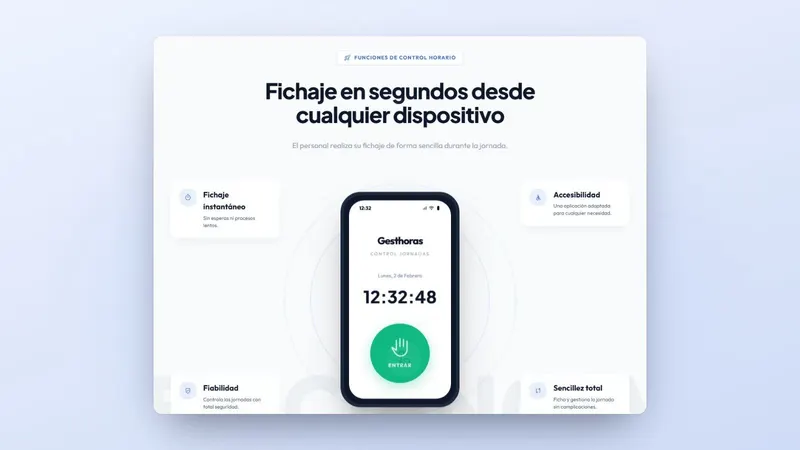
In Gesthoras, “to start or finish a working day, there is an individual link to record it from any device”. On the computer there is nothing to install: the person opens their link in the browser and can clock in straight away. Send it to each person by email, never in a group message.
3. Save the link in the browser bookmarks
Ask each person to keep it on the bookmarks bar or as their home page. That way clocking in goes hand in hand with switching on the computer and nobody has to hunt for an old email in their inbox.
4. Clock in when you start work
The time that counts is the real start of the working day, which sometimes comes before the computer is switched on. If someone answers the phone before sitting down, they clock in when they start answering. Breaks have their own rules: you'll find them in breaks and rest periods in the working time record.
5. Clock out before you shut down
This is the clocking that gets forgotten most often. In Gesthoras, “working days will be closed automatically at the time you set, which can be changed”, so no working day stays open all night. Still, review those days and correct whatever needs it, as we explain in what happens if an employee forgets to clock in.
6. Review working days every week
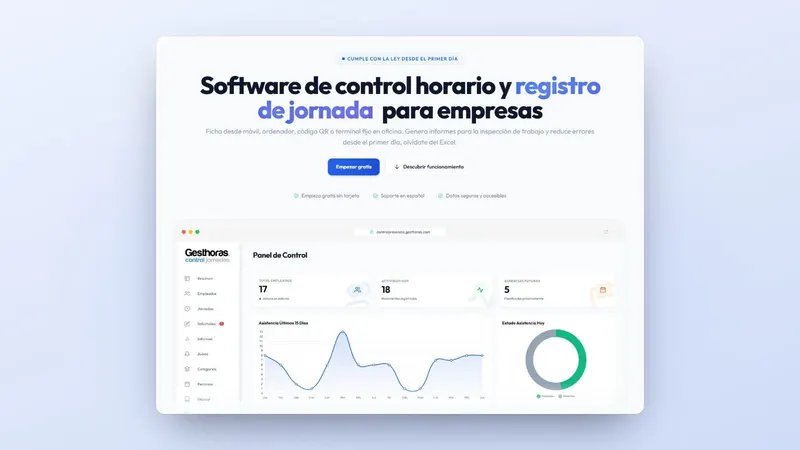
Each person checks their working days from the same link. From the dashboard, the company sees “who is working under the current working day, who has finished their day today or has not come to their workplace” (you'll find it in attendance control). At the end of the month you download the reports in PDF and Excel for your accountancy firm.
Common mistakes when clocking in on the computer
Clocking in on the computer works well until someone clocks in for somebody else or the connection drops mid-morning. This table lists the typical failures and how to avoid them:
| Mistake | What it causes | How to avoid it |
|---|---|---|
| Clocking in when switching on the computer rather than when starting work | Start times that do not reflect the real working day | Explain to staff what counts as the start of the working day |
| Using someone else's access on a shared machine | A record that does not identify who actually worked | Each person clocks in with their own personal link |
| Leaving without clocking out | Open working days and hours that do not add up | Automatic closing of the working day and a weekly review |
| The internet goes down in the office | Clock-ins that never arrive | In Gesthoras you can clock in offline and the records sync when coverage returns |
| Keeping the record on the computer and a separate Excel file as well | Two versions of the same working day | A single record; see the comparison of Excel and Gesthoras |
| Requiring people without a PC to clock in on one | Clock-ins jotted down from memory hours later | Another route for those roles: mobile, QR or terminal |
If what throws your month off is the clock-out nobody recorded or the morning without internet, Gesthoras closes the working day at the assigned time and stores the offline clock-in until the network comes back: ask for information on how to set it up in your office.
Computer, mobile, QR or terminal: which route for each role
Gesthoras lets you clock in from a mobile phone, a computer, a QR code or the RecLog terminal, and all routes end up in the same record. Choose according to where each person starts work:
| Role | Recommended route | Why |
|---|---|---|
| Administration, reception, technical office | Computer | They already have it in front of them at the start of the working day |
| Remote working | Computer or mobile with the personal link | Article 14 of Ley 10/2021 (Spain's remote working law) requires the time worked remotely to be faithfully recorded; more in working time record for remote work |
| Sales reps and visiting staff | Clocking in from the mobile | They start their working day at a client's premises, even without coverage |
| Warehouse, workshop, industrial unit | RecLog terminal with NFC key fob or card | Clocking in at the door, with or without internet, and with a 3-year warranty |
A single SME can combine them: the office clocks in on the computer and the warehouse on the terminal at the entrance, all in the same programme.
How it works with Gesthoras
Gesthoras runs in the browser. Staff clock in with their personal link and the company logs in to its dashboard to review clock-ins, schedules, incidents and daily attendance control. From there you produce the reports for the Labour Inspectorate and download them in PDF and Excel for the month-end close with your accountancy firm.
Gesthoras applies data minimisation: it collects only what is needed for the working time record and allows geolocation to be configured in a limited and justified way. If you have specific questions, check the frequently asked questions or the working time record page.
What to do this week to clock in from the computer
- Consult the employees' representatives, or the staff themselves if there are none, about the switch from the sign-in sheet to the computer, and put in writing how people clock in.
- Draw up the list of roles: who clocks in on the computer, who on the mobile and who on a terminal at the door.
- Test the system with one person before rolling it out to the whole office. The free plan is meant for that: it is for 1 employee with basic features, so you can start free with no card.
If you would prefer us to show you how it would look with your staff and your schedules, request information using the form on this page and we will call you from Huelva.